

Introduction
Searching for the chat gpt app usually means one of two things: you want to know it’s actually safe to download, or you’re not sure where to find the real one among a flood of copycat apps in the app stores. Both are fair concerns ChatGPT’s official mobile app is available on both Android and iPhone, but knowing exactly what to look for matters, since imitation apps do exist.
This guide walks through downloading the genuine OpenAI app, signing in, and getting comfortable using ChatGPT on your phone, whether you’re a student, a business owner, or just curious what the fuss is about. Our team at SocioLabs works with AI tools like this daily in content and marketing workflows, so this reflects practical, hands-on use, not just a features list.
What Is the ChatGPT App?
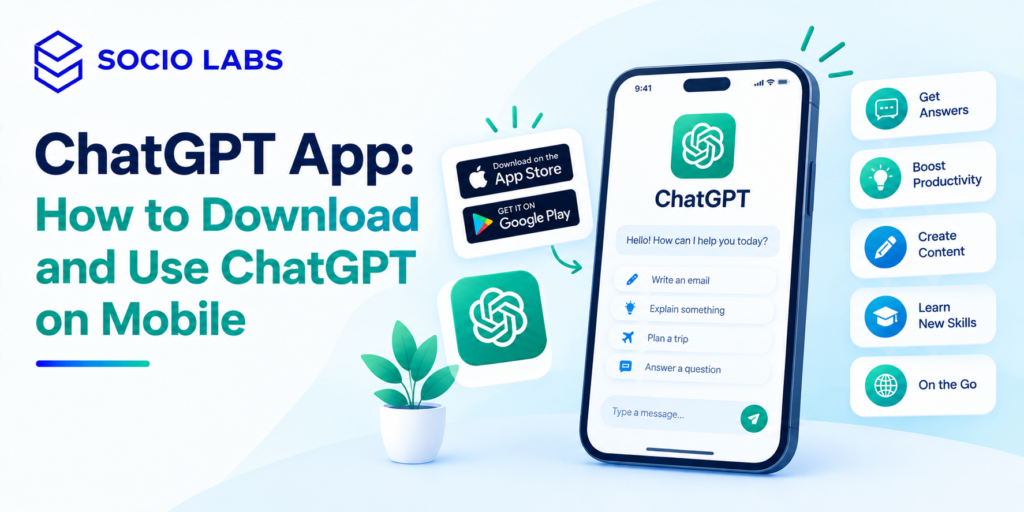
The ChatGPT app is OpenAI’s official mobile application, available for both Android and iPhone, giving you the same conversational AI experience as the web version in an interface designed for phone use.
It works the same core way as ChatGPT online you type or speak a question or request, and it generates a natural-language response you can follow up on, refine, or build a longer conversation around. The mobile app adds phone-specific conveniences like voice interaction and quicker access than opening a browser and typing a URL.
For anyone already comfortable with ChatGPT on desktop, the app should feel immediately familiar, just adapted for a smaller screen and touch interaction.
How to Download the Official ChatGPT App
ownload the official ChatGPT app directly from the Google Play Store on Android or the Apple App Store on iPhone, searching specifically for the app published by OpenAI and verifying the developer name before installing anything.
This verification step matters more than it might seem app stores have hosted lookalike “AI chat” apps trying to capitalize on ChatGPT’s name. Always check that the listed developer is OpenAI before you tap install.
Downloading on Android
- Open the Google Play Store
- Search for “ChatGPT”
- Confirm the app is published by OpenAI
- Tap Install
- Open the app once installation finishes
- Sign in or create an account
- Start your first conversation
Downloading on iPhone
- Open the Apple App Store
- Search for “ChatGPT”
- Confirm the developer is listed as OpenAI
- Tap Get/Install
- Open ChatGPT once it’s installed
- Sign in or create an account
- Start chatting
Exact button labels and screens can shift slightly as OpenAI updates the app, so treat these as the general flow rather than an exact screenshot-for-screenshot match.
How to Sign In and Start Using ChatGPT on Mobile
Sign in using an email address or an existing account option the app offers, then start a new conversation by typing (or speaking, where voice input is available) your question directly into the message box.
Once you’re logged in, the app typically opens to a new conversation screen. From there, the basic workflow is: type your question → review the response → ask a follow-up if needed → refine until you get something genuinely useful. Your conversation history typically syncs if you’re logged into the same account across devices.
If the interface looks slightly different from what’s described here, that’s expected mobile apps get updated more frequently than a printed guide can track, and the core steps stay consistent even as the visual layout evolves.
What Can You Do With ChatGPT on Mobile?
On mobile, ChatGPT supports the same core tasks as the desktop version answering questions, drafting writing, brainstorming, summarizing, and coding help with the added convenience of voice interaction and quick access on the go.
A student might ask it to explain a concept while commuting. A freelancer might dictate a client email using voice input between meetings. A small business owner might brainstorm content ideas from their phone before a call, then continue the same conversation later on desktop.
- Learning: Quick explanations and examples wherever you are
- Writing: Drafting or editing emails, captions, and messages on the go
- Research: Getting a starting summary of a topic before deeper research
- Business communication: Drafting quick responses between meetings
- Voice interaction: Speaking questions instead of typing, where available on your device and account
As with desktop, treat responses as a helpful starting point verify anything important rather than assuming it’s automatically correct.
How to Write Better ChatGPT Prompts on Mobile
Better prompts on mobile follow the same principle as anywhere else specific, context-rich requests produce far more useful answers than vague, one-line questions.
Weak: “SEO?” Better: “Explain SEO to a beginner in simple language and give five practical examples.”
Weak: “Write an email.” Better: “Write a professional 150-word email asking a client to approve the SEO proposal.”
On a smaller screen, it’s tempting to type short, vague prompts just because typing is more effort on mobile using voice input to dictate a fuller, more detailed prompt often solves this without adding real friction.
Is the ChatGPT App Free to Use?
Yes the chat gpt app offers free access to a meaningful range of everyday features, though certain advanced tools, higher usage volumes, and the most capable models are typically reserved for paid plans.
Free access doesn’t mean every feature or model is unlocked at no cost availability can depend on your current plan, account, region, and OpenAI’s product policies at any given time, all of which can change. Since exact limits and plan structures shift periodically, check OpenAI’s own current pricing information directly if you want precise, up-to-date details rather than relying on a number that might be outdated by the time you read it.
ChatGPT App vs ChatGPT Online: What's the Difference?
The ChatGPT app and ChatGPT online are essentially the same underlying product accessed two different ways the app requires installation and offers mobile-specific conveniences, while the browser version needs no download and works anywhere you can open a web page.
Feature | ChatGPT Mobile App | ChatGPT Online |
Device | Smartphone/tablet | Any device with a web browser |
Installation | Required (Play Store/App Store) | Not required |
Mobile convenience | High built for touch and voice | Depends on your browser experience |
Updates | Delivered through app store updates | Updated directly on the web |
Account access | Same account works across both | Same account works across both |
Core features | Largely the same as online, with mobile extras like voice | Full-featured browser experience |
Neither is objectively better many people use both interchangeably, starting a conversation on mobile and continuing it later on desktop, since the account and history typically carry over.
Common ChatGPT App Problems and How to Fix Them
Most common ChatGPT app problems the app not appearing in your store, sign-in failures, or the app not loading are usually resolved by checking your app store region settings, confirming your internet connection, or updating to the latest app version.
- App not appearing in the store: Check your region/country settings in the app store, since availability can vary by market
- Unable to sign in: Double-check your credentials, and confirm you’re not being blocked by an outdated app version
- App not loading: Check your internet connection first, then try closing and reopening the app
- App needs an update: Check your app store for a pending update, since older versions can behave unexpectedly
- A feature seems unavailable: Some features roll out gradually by account, region, or plan this isn’t necessarily a bug
- Voice feature not appearing: Confirm your app version is current and that voice access has rolled out to your account
For anything these general steps don’t resolve, checking OpenAI’s official support resources directly is the right next step rather than guessing at unofficial fixes.
ChatGPT App Safety and Privacy Tips
Use the ChatGPT app safely by downloading only from official app stores, avoiding sharing sensitive personal information in your prompts, and reviewing anything important before acting on it.
Be cautious about uploading sensitive documents or images unless you’re confident about how that content might be used or stored. Avoid entering passwords, financial account numbers, or confidential business information into any prompt. Exploring AI SEO services is worth considering if your business is thinking more broadly about responsible AI use in content and data practices, not just individual app safety.
Conclusion
Getting started with the chat gpt app really comes down to three things: downloading the genuine OpenAI app from an official store, signing in, and typing your first question. Whether you’re on Android or iPhone, the experience closely mirrors ChatGPT online, with the added convenience of voice input and quick mobile access. Always verify you’re using the official app, and treat responses as a helpful starting point rather than an automatically correct answer. If you’re also exploring how AI can improve SEO, content, and digital marketing, explore more practical resources from SocioLabs.
FAQs
Yes OpenAI publishes an official ChatGPT app available on both the Google Play Store for Android and the Apple App Store for iPhone.
Search "ChatGPT" in your phone's official app store, confirm the developer is listed as OpenAI, and tap install then sign in to start using it.
Yes the chat gpt app offers free access for everyday use, though some advanced features and higher usage limits are typically reserved for paid plans.
Yes the official ChatGPT app is available for Android through the Google Play Store.
Yes the official ChatGPT app is available for iPhone through the Apple App Store.